TLDR
Stern Insider Connected setup involves up to four separate tasks: creating a player account, connecting an equipped game to the internet, registering that game, and configuring Home Team for regular household players. An older compatible machine may also need an edition-specific retrofit kit. Start with the manual and support material for your exact title and edition rather than assuming every Stern uses the same hardware or menus.
For an already equipped machine, the practical sequence is account first, connection second, connection test third, and game registration fourth. Configure Home Team only after individual player QR codes work normally. If the machine lacks Connected hardware, verify compatibility before buying a kit; do not choose a kit merely because the cabinet says Pro, Premium, or LE.
Know which kind of setup you need
“Insider Connected setup” can describe several different jobs. Separating them prevents a player-account problem from being mistaken for failed machine hardware.
| Task | What it accomplishes | What to verify first |
|---|---|---|
| Player account | Creates the identity represented by a player QR code | Access to the account and the current Mobile ID Card |
| Network connection | Puts an equipped game online | The exact game manual and local network details |
| Game registration | Associates an online machine through Stern’s registration process | A successful connection test |
| Home Team | Simplifies identification for frequent home players | Working individual accounts and compatible game code |
| Retrofit | Adds Connected hardware to an eligible older game | Exact title, edition, hardware, instructions, and kit compatibility |
Before changing anything, record the machine’s complete title, edition, and installed game-code version. Inspect externally for the Connected reader and relevant menu entries, but do not open the backbox or start moving wiring while the game is powered. Stern’s support section provides official setup resources and digital documentation; use the material matching the actual machine, not the instructions for a similar model. Stern’s official setup support is the appropriate starting point.
Create or recover the player account
A Stern Insider player account and a registered pinball machine are not the same thing. The player account provides a unique QR code that identifies that player when used on a Connected game. Stern has supported registration online and through a registration flow presented by a Connected machine.
Sign in to the account before working on the cabinet. Confirm that the Mobile ID Card or player QR code displays correctly and that the account uses an email address you can access. Each household member who wants separate identification and progress should use a separate account rather than sharing one QR code. The QR code is an account identifier, so avoid posting a clear, reusable image of it publicly.
Stern currently presents both a free/basic Insider option and a paid All-Access tier, but prices, benefits, and feature boundaries can change. Check the current plan description before concluding that a missing function requires payment. A connection or identification failure should still be diagnosed as a technical problem first unless Stern’s current documentation explicitly places that function behind a paid tier.
Connect and register an equipped machine
Current Stern documentation shows an Insider Connected service-menu area with functions such as Setup Connection, Test Connection, Game Registration, Software Update, Setup Home Team, and Change Settings. Menu wording and availability can differ by title or code version, so treat that list as a map rather than a universal button-by-button script.
- Open the machine’s service menu and locate the Stern Insider Connected section described in its manual.
- Choose Setup Connection and follow the on-screen process for the network method supported by that machine.
- Run Test Connection. Do not proceed on the assumption that entering network information means the connection succeeded.
- When the test succeeds, open Game Registration and follow the current on-screen and account prompts.
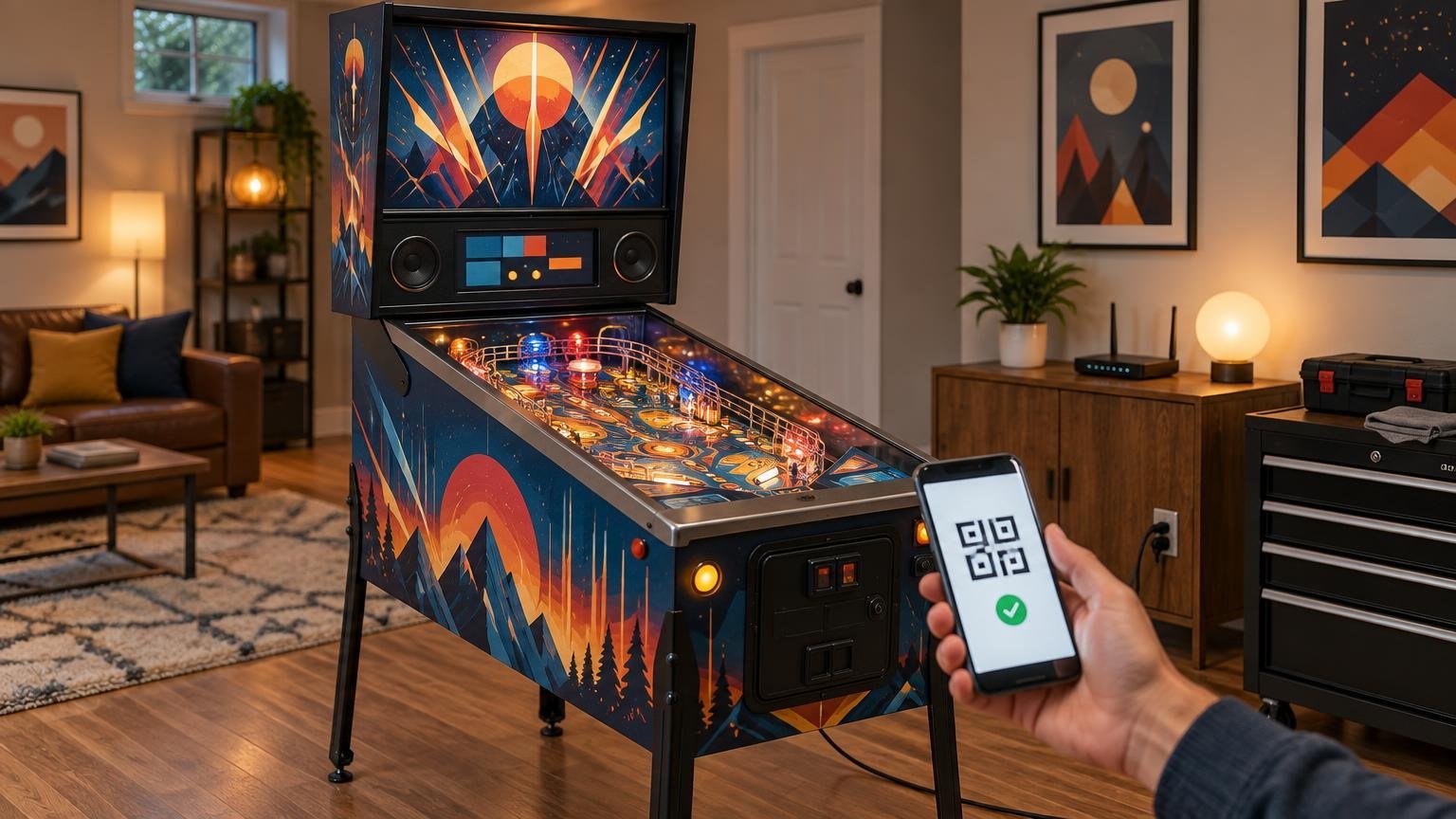
- Test ordinary player identification by scanning the QR code from the Mobile ID Card.
- Only after basic identification works should you configure Home Team or investigate achievement behavior.
Do not guess at Wi-Fi bands, security modes, wired-network behavior, or captive-portal support. Those requirements are not established uniformly by the available documentation and can change with hardware or software. A home network that requires a browser-based sign-in page may also call for a different approach, but the exact answer should come from Stern’s current documentation or support.
Game Registration is also different from player login. If a player QR scan succeeds but the cabinet still reports a registration issue, revisit the machine-registration step. Conversely, registering the cabinet does not prove that every household account or QR code is working.
Configure Home Team for regular household players
Home Team is intended to reduce repeated QR scanning for frequent players on a non-commercial home machine. Stern’s setup material presents it as a household convenience rather than a general location-management feature.
Set up each player account and verify its QR code independently before adding Home Team. Then use Setup Home Team in the Connected menu and follow the title’s current instructions. This order matters: when the underlying account or reader is not working, Home Team can obscure the original fault instead of fixing it.
After configuration, test more than one player and confirm that the machine attributes play to the intended person. Home Team behavior may depend on the title and installed code. Stern maintains help material for both Mobile ID Card and Home Team, so consult that documentation when the cabinet’s prompts differ from an older setup guide.
Handle game updates and achievement problems separately
A working internet connection does not prove that the machine has the newest game code, and new code cannot repair a physical reader, damaged cable, or other hardware fault. Check the installed version against the current release for the exact title and edition. The machine’s Connected menu may include Software Update, but follow the game manual and release instructions for the supported update method. For a broader explanation of what software can and cannot change, see how pinball code updates work.
When an expected achievement does not appear, confirm the sequence before assuming the platform lost it: Was the correct player identified before the game began? Did Test Connection pass? Was the required in-game condition actually completed under the current rules? Is the game running code that supports the feature? Does the account show the same player identity used at the machine? These observations narrow the problem without pretending to diagnose Stern’s servers or the cabinet from a distance.
Connected services can also experience interruptions even when the local setup is sound. Stern’s terms do not warrant uninterrupted or error-free operation of online or connected networks. If local tests pass but several accounts fail at once, preserve the error wording and try again later before changing cabinet hardware.
Determine whether a retrofit kit is required
Do not buy a retrofit kit until Stern’s current compatibility information confirms the exact machine. Stern announced distinct kit categories for compatible LCD commercial games: one for Pro machines and another for Premium/LE machines, with edition-specific physical components. Official store listings have also separated Pro and Premium kits. Availability, pricing, included parts, and supported titles remain time-sensitive.
Edition names alone are not enough. Verify the game title, production hardware, display platform, required mounting parts, current instructions, and whether the kit affects any existing accessories. An apparently simple reader installation can still involve cabinet access, wiring, fit, grounding, and later service access. Power the machine off and disconnect it as directed before any hardware work. If the instructions do not clearly match the cabinet, stop and consult Stern, an authorized dealer, or a qualified technician rather than improvising connections.
A practical troubleshooting checklist
- Confirm the complete game title, edition, and installed code version.
- Verify that Connected hardware is present and that its cables or reader have not obviously been disturbed.
- Confirm that the individual player can access the account and display the current QR code.
- Run Test Connection and record the exact result or error message.
- Separate player identification, machine registration, Home Team, software update, and achievement symptoms.
- Restart only as directed by the machine documentation; repeated resets are not a substitute for identifying the failed step.
- Compare the cabinet prompts with current documentation for that exact title.
- If the problem followed a retrofit or other cabinet work, power down and have the installation checked before moving more wiring.
- Escalate with the title, edition, code version, connection-test result, and exact error text ready.
For Utah owners, Rock Custom Pinball states that it provides general pinball repair and troubleshooting and may assess customer-supplied upgrades based on the machine and part. That does not establish universal installation support for Insider Connected kits, so confirm the exact scope before arranging service.
Privacy, selling, and moving questions
Connected play links a player identity to a unique QR code and an online service. Use separate household accounts, protect account credentials, avoid sharing clear QR images, and review Stern’s current privacy and account terms before enabling features. Do not assume that Home Team turns a player account into a purely local cabinet profile.
Before selling a machine, changing operators, or leaving it at another location, do not guess at an unregistration or ownership-transfer process. The supplied official material does not establish a current universal procedure. Check the current support instructions or contact Stern with the exact game and registration status. Remove household conveniences only through documented settings, and avoid a factory reset unless the machine’s manual or support team specifically calls for it.
Common questions
Does every modern Stern need a retrofit kit?
No. Some machines are already equipped, while some compatible older LCD commercial machines may use an edition-specific upgrade kit. Compatibility must be checked by exact title, edition, and hardware.
Can several people track play on one home machine?
Yes, the player-identification model supports unique player QR codes, and Home Team is designed to make frequent household use more convenient. Set up and test each account separately first.
Do I need a paid Insider plan?
Stern offers a free/basic option and an All-Access tier, but current benefits and prices should be checked directly. Do not assume that basic machine connection, every achievement, or every account feature has the same plan requirement indefinitely.
What is the best first step when QR login fails?
Verify that the account can display its QR code, clean the reader area without disassembling it, run Test Connection, and try another valid household account. Those observations help separate an account problem from connectivity or reader hardware.
Finish with a clean baseline
The safest Stern Insider Connected setup is methodical: identify the exact machine, establish the player account, connect and test the cabinet, register the game, verify an ordinary QR login, and only then configure Home Team. Treat updates, achievements, and retrofit hardware as separate layers. If the exact manual and current support material do not answer a hardware or transfer question, pause and ask Stern or a qualified service provider instead of turning a network setup into an avoidable cabinet repair.
References
- How to Set Up – Stern Pinball
- www.sternpinball.com
- Stern Pinball Launches New Insider Connected™ Features – Stern Pinball
- Stern Insider – Stern Pinball
- Star Wars Home Edition Plus Game Information
- PowerPoint Presentation
- Insider Connected FAQ – Stern Pinball
- Insider Connected Mobile ID Card and Home Team – Stern Pinball
- Insider Connected Upgrade Kit-Pro – Stern Pinball
- Connect All LCD Commercial Stern Pinball Machines with Stern Pinball’s Insider Connected™ Upgrade Kits – Stern Pinball
- shop.sternpinball.com
- Contact – Rock Custom Pinball Rentals